It is recommended to have mobile games Frame Per Second (FPS) rate to be of at least 60 frame per seconds ( 60 FPS )
Here is how to display the frame rate in a Unity game:
Add a canvas, add a panel in it, and add a Text component.
Create a c# (or JS) script, add a reference to the text game object
Make sure to add the using UnityEngine.UI statement.
Then in the update method, write this:
void update() {
float fps = (1.0f / Time.smoothDeltaTime);
myText.text = fps.toString();
}
Now you’ll see the frame rate on the game screen. Do not use a Debug.Log to show the frame rate because it will slow down the game and affect your frame rate.
Now that you can see the game’s frame rate, what if the game frame rate is lower than 60?
First of all, you need to understand that the human eye takes a picture every 10th of a second, meaning it takes about 10 pictures in a seconds.
so usually you want to double that at least to ease the sights. Movies usually run at 24 to 30 FPS.
So why would you want a video game to run at 60 FPS? Well, for a video game, the player is constantly focusing on specific part of the screen, and it’s a lot more intense, so you’d ultimately want the game to be extra smooth. Especially for developing virtual reality games (VR), it’s been recommended to use 90 FPS. What a challenge! Developers need to be extra careful at making game performance improvements and also PC manufacturers need to make more affordable powerful graphic cards. (yes sorry to break it to you, but in 2016, you need a beast PC to run Oculus Rift smoothly)
Here is how to improve game performance ( and increase the FPS):
– The easiest way is to start by tweaking the camera settings. You can always shrink the camera view to that the field of view will have less game objects within the area, which means, less computations which will increase the FPS. ( Unity automatically excludes game objects that are not in the camera view. )
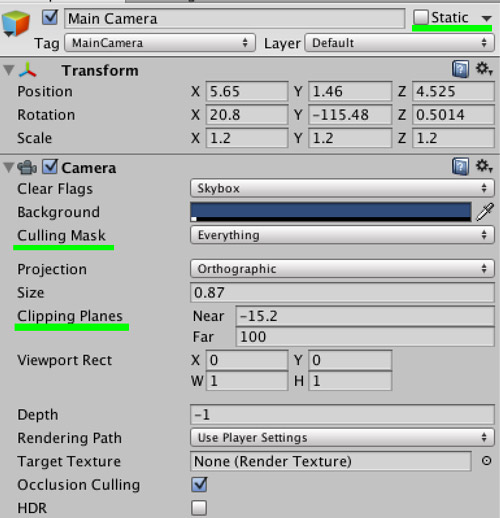
– Use camera culling on all layers and all types of game objects. Go to your camera settings, and in the inspector, you’ll see “Culling Mask” set it to “everything”. Also, click on the checkbox “Occlusion Culling” and make sure it’s checked. It will stop Unity from computing the objects that are hidden by other objects.
– Decrease the field’s depth of view. Play with the Camera clipping planes near and far values. Have the range between near and far to be as low as possible without removing too many objects from the field of view.
– The game objects that are part of the background should have the “static” properties turned ON. Same goes for any object that you know won’t move in your game.
In the Unity Editor, select a static gameobject, then in the inspector, in the top right corner, you’ll find a checkbox that is named “Static” and check it.
– Less mesh faces to compute means less light bouncing to calculate, which means better performance. Lower your models’ polygon count. You can always take your object models (meshes) import them in a program like Maya or Blender (free to use) and then reduce the number of polygons or faces (nowadays most 3D software have this feature right out off the box).
– Modify your game background. If it’s a complicated background that contains lots of gameobjects, you can fake the landscape by taking screenshots of them and adding them as images on a skybox. It’s not as good, but it’s a hell of a gain in performance.
If all of these tips are not enough for your game, then you need to modify the game’s scripting code. Code execution can be refactored and tweaked to decrease the update() load.
Running a game involves a series of calculations in every frame (which is happening in every Update() method for every script) – capturing player input (clicks, moves, taps, keyboard key pressed), computing physics, Enemies and NPC Artificial Intelligence calculations, and rendering every object’s material lights, and shadows. – If any of these tasks takes a longer time than any other tasks, it will become the bottleneck and it will need to be improved if you want to see any improvement in frame rate.
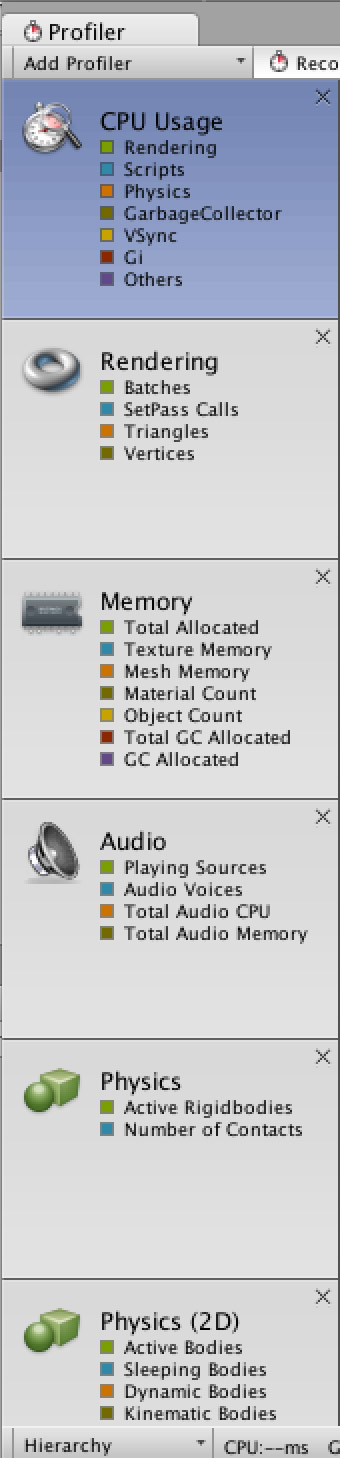
Unity comes with a performance profiler that you can use to analyze how much resources each of the game elements is using for each frame. This is a great way to figure out what to improve on. In Unity Editor, click on the Window Menu and select “Profiler”. (it takes some time to master how to read the profiler data)
Good luck tweaking your game. You can always contact us have an engineer from the AppsFresh.com team take a look at it.